The Items Page
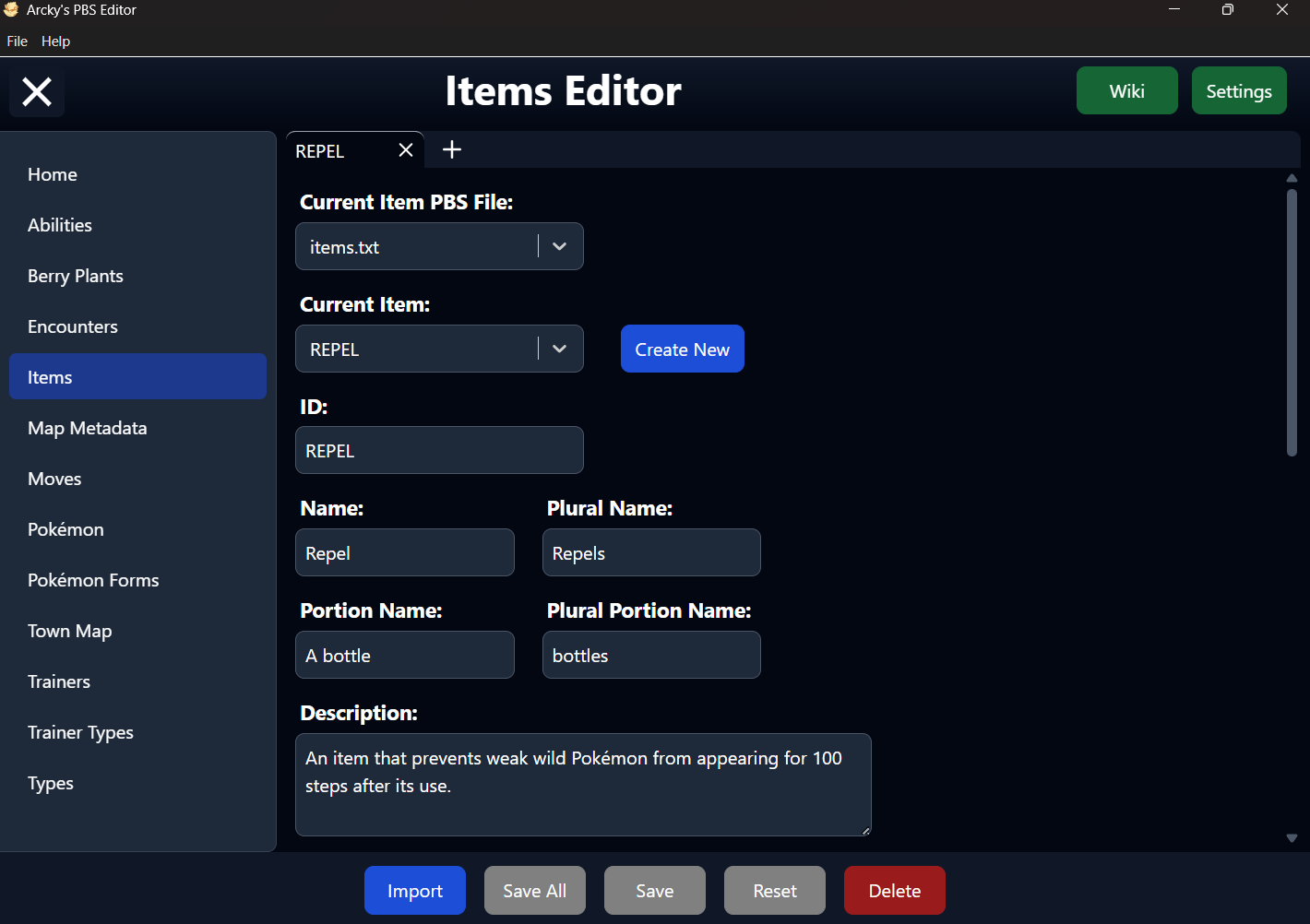
The Items Editor Page of the PBS Editor.
Overview
The Item page is the dedicated editor within the PBS Editor for viewing and modifying all Item PBS data in your project. It provides a structured interface to inspact and edit every Item entry without needing to work directly with raw PBS files.
All default parameters defined by Essentials are presented in a clear and consistent layout, making it easy to understand and manage Item data at a glance. In addition, any fields introduced through plugins or custom extensions are automatically detected and displayed when present.
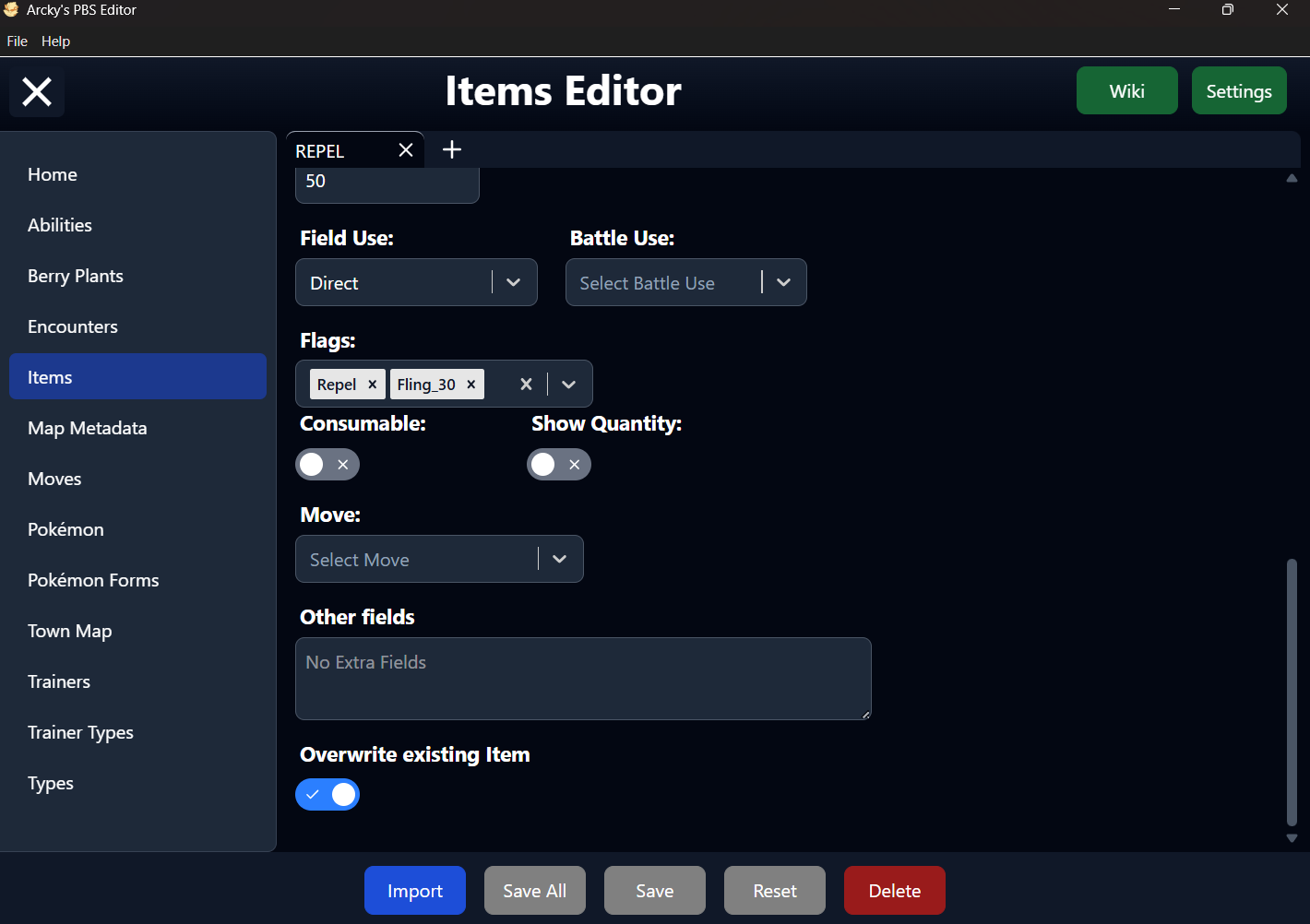
These extra properties are grouped under the Other Fields section, allowing the editor to remain clean and orginized while still supporting extended functionality.
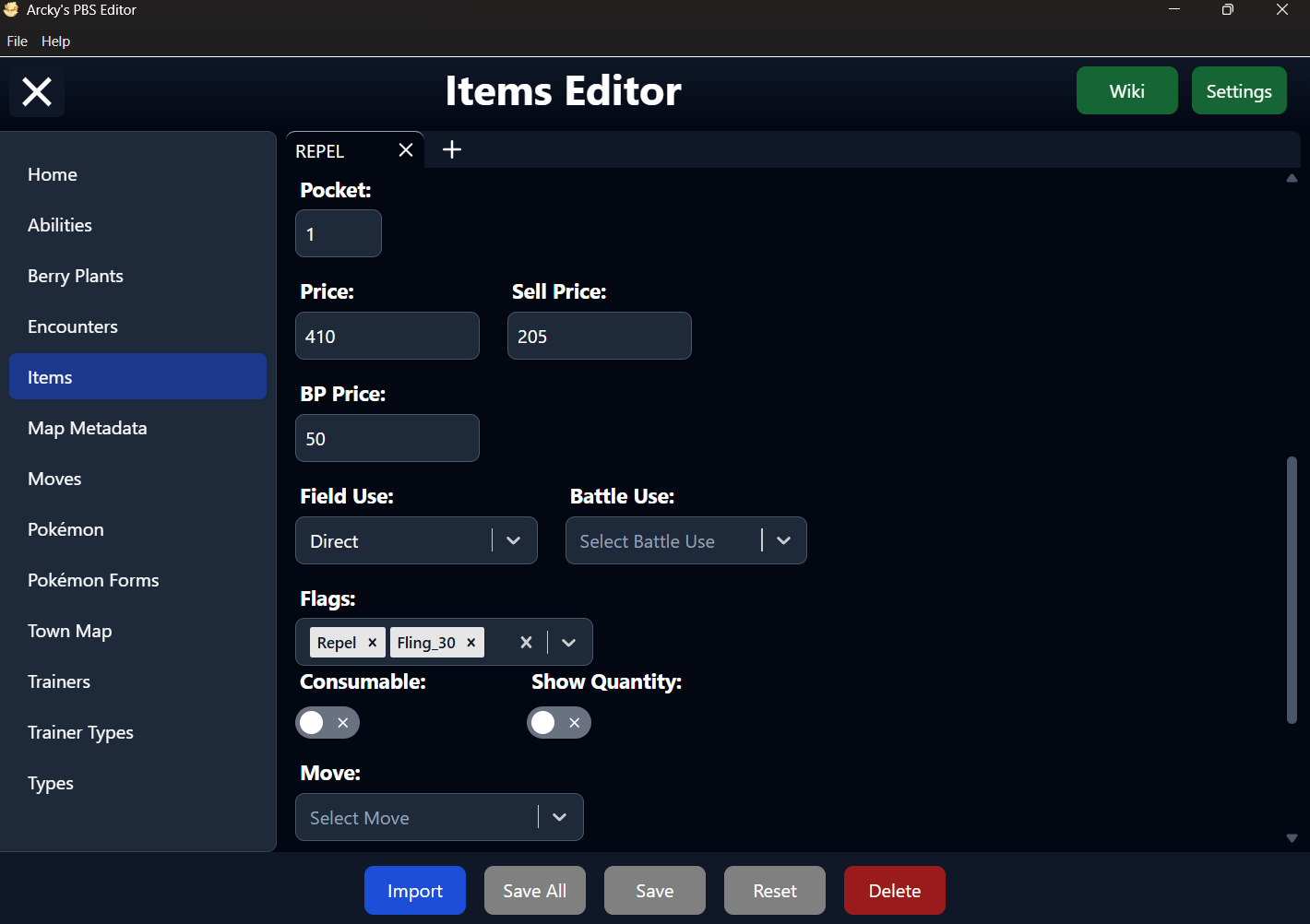
The screenshots below illustrate the general layout and structure of the Item editor. They serve as a visual guide to help you quickly locate sections and understand how information is orginized within the interface.
Detailed explanations of individual parameters are provided in the sections that follow. For deeper technical insight or engine-level behavior, refer to the official documentation:
Defining an Item on the wiki.
Wiki
Settings
Import Items
To Import one or more Items into the Editor, your data must be provided in a TSV (Tab-Separated Values) file.
The easiest way to create this format is by using Google sheets, which allows you to quickly orginize your data and export it directly as a TSV file.
For reference, you can use the following example as a template for structuring your data correctly: TSV Berry Plants Example
Required Fields
Each Item entry must include the following required parameters:
- ID
- name
- price
If any of these fields are missing, the editor will skip the entry and report which required values are not present-helping you quickly identify and correct issues in your file.
File Selection
This dropdown allows you to choose between all available Item PBS files detected in your project.
The primary file is typically named items.txt, but the editor also supports additional files following the format items_xxx.txt.
The underscore (_) is required for these extra files to be recognized. Any text can follow it (e.g. items_custom.txt), but files without this naming pattern will not be detected as Item PBS files.
If only a single file is available, the dropdown will be automatically disabled, and that file will be selected by default.
Item Selection
This dropdown lists all available Item entries for the currently selected file, identified by their ID.
In the PBS file, these IDs are defined using the format [xxx]. For improved readability, the editor displays them without brackets in the interface.
Despite this visual simplification, the brackets are still required in the actual PBS structure. When saving, the editor will automatically restore the correct [xxx] format, even though it is not shown within the editor itself.
ID
The ID serves as the internal identifier used by the engine to reference an Item. Each Item must have a unique ID to function correctly.
In most cases, the ID mirrors the Item's name, formatted in ALL CAPS and without spaces or special characters (e.g. REPEL, FIRESTONE). To help prevent errors, the editor will automatically filter out invalid characters as you type.
Within the PBS file, the ID defined the start of a new Item entry and must always appear first in each block. This structure is handled automatically by the editor when saving, so no manual formatting is required.
Name
The Name defines the singular name of the Item as shown to the player in-game.
This is the label used in menus, summaries, and battle interfaces, making it an important part of how the Item is presented to the player.
Default Value
The Name field is optional, but no default value is assigned by the editor.
If left undefined, the Item's Name will be Unnamed.
Plural Name
The Plural Name defines the plural form of the name of the Item as shown to the player in-game.
This is the label used in menus, summaries, and battle interfaces, making it an important part of how the Item is presented to the player.
Default Value
The Plural Name field is optional, but no default value is assigned by the editor.
If left undefined, the Item's Plural Name will be Unnamed.
Portion Name
The Portion Name defines the name of the portion of the Item, used in most in-game messages.
When the player has found an item, instead of "The player found 1 Repel", it could say "The player found 1 bottle of Repel".
Default Value
Portion Name does not have a default value.
Plural Portion Name
The Plural Portion Name defines the plural form of the portion name of the item.
When the play has found multiple of a same item, instead of "The player found 5 Repels", it could say "The player found 5 bottles of Repel".
Default Value
Plural Portion Name does not have a default value.
Description
The Description provides a short explanation of what the Item does in-game.
Typically, HMs, TMs, TRs will have the same Description as the moves they teach, but they don't need to.
Default Value
The Description field is Optional, but no default value is assigned by the editor.
if left undefined, the Item's Description will be ???.
The Pocket defines the Bag Pocket Number the Item is stored in.
Default Value
The Pocket field is Optional, but no default value is assigned by the editor.
If left undefined, the Item's Pocket will be 1.
Options
By default, this is one of:
- 1 - Items
- 2 - Medicine
- 3 - Poké Balls
- 4 - TMs & HMs
- 5 - Berries
- 6 - Mail
- 7 - Battle Items
- 8 - Key Items
The list of Bag Pockets is in the script section Settings.
Price
The Price defines the Cost of the Item when the player buys it from a Poke Mart.
If an Item has a Price of 0, the player cannot sell it.
Default Value
The Price field is Optional, but no default value is assigned by the editor.
If left undefined, the Item's Price will be 0.
Sell Price
The Sell Price defines the amount of money gained for the Item when selling it to a Poké Mart.
Default Value
The Sell Price field is Optional, but no default value is assigned by the editor.
If left undefined, the Item's Sell Price will be half the Item's price.
BP Price
The BP Price defines the Cost of the Item when the player buys it from a Battle Point Shop.
By default, the player cannot sell items for BP. But you can if you have Arcky's Poke Market Plugin installed.
Default Value
The BP Price field is Optional, but no default value is assigned by the editor.
If left undefined, the Item's BP Price will be 1.
Sell BP Price
The Sell BP Price defines the amount of BP gained for the Item when selling it to a Battle Point Shop.
Like mentioned above, only when you have Arcky's Poke Market Plugin installed, you can sell items for Battle Points.
Default Value
The Sell BP Price field is Optional and will also only appear if you have enabled "Arcky's Poke market" Setting in the Editor. No default value is assigned by the editor.
If left undefined, the Item's Sell BP Price will be half of the Item's BP Price.
Coin Price
The Coin Price defines the Cost of the Item when the player buys it from a Coin shop.
By default, there's no Coin Price parameter. But there is if you have Arcky's Poke Market Plugin installed.
Default Value
The Coin Price field is Optionaland will also only appear if you have enabled "Arcky's Poke market" Setting in the Editor. No default value is assigned by the editor.
If left undefined, the Item's Coin Price will be 1.
Sell Coin Price
The Sell Coin Price defines the amount of Coins gained for the Item when selling it to a Coins Shop.
Like mentioned above, only when you have Arcky's Poke Market Plugin installed, you can sell items for Coins.
Default Value
The Sell Coin Price field is Optional and will also only appear if you have enabled "Arcky's Poke market" Setting in the Editor. No default value is assigned by the editor.
If left undefined, the Item's Sell Coin Price will be half of the Item's Coin Price.
Field Use
This Field Use Field is a dropdown which allows you to assign how the Item can be used outside of battle.
The available options in this dropdown can be managed through the Item Editor Settings.
Default Value
Field Use does not have a default value.
Options
By default, the editor includes the following Field Uses:
- OnPokemon - The Item can be used on a Pokémon (e.g. Potions, Elixirs). The party screen will appear when using this Item, allowing you to choose the Pokémon to use it on. Not for TMs, TRs and HMs, though.
- Direct - The Item can be used out of battle, but isn't used on a Pokémon (e.g. Repel, Escape Rope, usable Key Items)
- TR - The Item is a TR. It teaches a move to a Pokémon, and disappears after use.
- TM - The Item is a TM. It teaches a move to a Pokémon, but does not dissapear after use.
- HM - The Item is a HM. It teaches a move to a Pokémon, but does not dissapear after use. Moves taught by a HM cannot be forgotten.
Battle Use
This Battle Use Field is a dropdown which allows you to assign how the Item can be used in battle.
The available options in the dropdown can be manged through the Item Editor Settings.
Default Value
Battle Use does not have a default value.
Options
By default, the editor includes the following Battle Uses:
- OnPokemon - The Item can be used on one of your party Pokémon (e.g. Potions, Elixirs, Blue Flute). The party screen will appear when using this Item, allowing you to choose the Pokémon to use it on.
- OnMove - The Item can be used on one of the moves known by one of your party Pokémon (e.g. Ether). The party screen will appear when using this Item, following by a list of moves to choose from.
- OnBattler - The Item is used on the Pokémon in battle that you are choosing a command for (e.g. X Accuracy, Red/Yellow Flutes).
- OnFoe - The Item is used on an opposing Pokémon in battle (Poké Balls). If there is more than one opposing Pokémon, you will be able to choose which of them to use it on.
- Direct - The Item is used with no target (e.g. Poké Doll, Guard Spec., Poké Flute).
Flags
The Flags field is a multi-select dropdown, allowing you to assign multiple values to an Item at the same time.
All selected Flags are stored in the PBS file as a comma-separated list, ensuring compatibility with the underlying data format.
The available options in this dropdown can be managed through the Item Editor Settings.
Default Value
Flags do not have a default value.
Options
By default, the editor includes the following Flags:
- Mail - The Item is a Mail Item.
- IconMail - The Item is a Mail Item, and the images of the holder and two other party Pokémon appear on the Mail.
- PokeBall - The Item is a Poké Ball item.
- SnagBall - The Item is a Snag Ball (i.e. it can capture enemy trainers' Shadow Pokémon).
- Berry - The Item is a berry that can be planted.
- KeyItem - The Item is a Key Item.
- EvolutionStone - The Item is an evolution stone.
- Fossil - The Item is a fossil that can be revived. Not to be used for the incomplete fossils from Gen 8 which are pieced together to revive a Pokémon.
- Apricorn - The Item is an Apricorn that can be converted into a Poké Ball.
- TypeGem - The Item is an elemental power-raising Gem.
- Mulch - The Item is mulch that can be spread on berry patches.
- MegaStone - The Item is a Mega Stone. This does NOT include the Red/Blue Orbs.
- MegaRing - The Item is a Mega Ring, which allows Mega Evolution.
- Repel - The Item is a Repel, and can be used automatically when a Repel runs out.
- Fling_30 - The Item can be thrown by the move Fling. The number is Fling's base power when used with the Item. The number can be any number, but should be greater than 0. The Editor provides extra options for Fling from
Fling_5up toFling_100in steps of 5. - NaturalGift_POISON_80 - The Item can be used by the move Natural Gift. The type and number are Natural Gift's type and base power when used with the Item. The type can be any type, and the number can be any number but should be greater than 0. The editor provides extra options for NaturalGift for each Type and in steps of 5.
Additional Flags can be added or removed via the Item Flags section in the Settings menu, allowing full customization of available Flag options. The Fling and Natural Gift Flags cannot be removed as these are auto generated by the Editor.
Consumable
This toggle determines wether the Item will be consumed after use from the Bag.
Usually only used to make a non-Key Item infinite use (e.g. Black/White Flutes).
- On — The Item will be consumed after use from the Bag.
- Off — The Item will not be consumed after use from the Bag.
Default Value
The Consumable field is Optional, but no default value is assigned by the editor.
If left undefined, the Item's Consumable value will be
- On if the Item is a Key Item, TM or HM.
- Off if the Item is anything else.
Show Quantity
This toggle detemines wether the Item show its quantity in the Bag.
Only used to show the quantity of a Key Item, TM or HM.
- On — The Item will show its quantity in the Bag.
- Off — The Item will not show its quantity in the Bag.
Default Value
The Qauntity field is Optional, but no default value is assigned by the editor.
If left undefined, the Item's Show Quantity value will be
- On if the Item is a Key Item TM or HM.
- Off if the Item is anything else.
Item Move
This Move Field is a dropdown which allows you to assign a Move to the Item. It lists up all the Moves from the moves.txt PBS files.
For HMs, TMs and TRs only.
Default Value
Move does not have a default value.
Other Parameters
Any custom parameters present in your Move PBS files that are not recognized by the editor will automatically be grouped under the Other Fields section.
These values are preserved exactly as they appear in the original file, without modification or reformatting.
When saving, the editor will write these fields back unchanged, ensuring that plugin-specific or engine-modified data is never lost or corrupted.
Item Overwrite
This toggle determines how the editor handles saving the current Item entry.
- On — The editor will overwrite the existing Item entry that matches the current ID across the selected PBS file. This is the default mode.
- Off — The editor will save the entry as a new Item entry, but only if the ID does not already exist in any loaded Item PBS file. If a matching ID is found anywhere, the entry cannot be saved.