Add subdomain with Certbot and Nginx
How to add a new Subdomain using Certbot and Nginx.
Overview
This Tutorial covers:
- Adding a new subdomain using Certbot and Nginx.
Prerequisites
- VPS running Ubuntu 24.04 (or similar)
- Docker + Portainer already installed
- Your domain configures via Nginx reverse proxy
- Access to your VPS as root
I'll be using "sub.your-domain.com" as the example domain name through the guide, make sure to replace it with your own sub and domain name each time.
Create DNS record
In your domain DNS panel add: (I'm using easyhost.be)
| Type | Name | Value |
|---|---|---|
| A | vault | [your-vps-ip] |
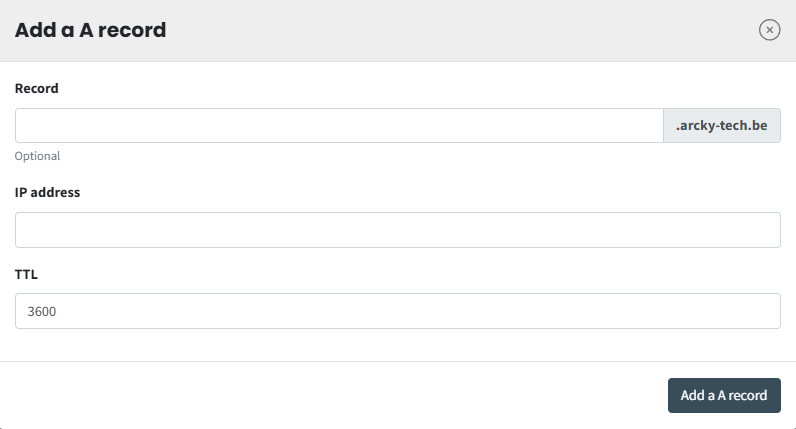
EasyHost A Record
Verify working DNS
You can verify that DNS is working with:
or
You should se your server's IP address.
Create an Nginx Configuration
Add:
Replace 3096 with the port you want to use.
Save (press ctrl + 0, then enter, then ctrl + x)
Enable the Site
run:
Then text Nginx:
Result:
Then reload:
Get the SSL certificate with Certbot
Run:
Certbot should:
- Verify that you control
sub.your-domain.com - Request the Let's Encrypt certificate
- Modify your Nginx configuration
- Enable HTTPS
- Optionally redirect HTTP to HTTPS
You'll typically get a prompt asking whether you'd like HTTP traffic redirected to HTTPS. I'd generally choose the redirect option.
Check that HTTPS works
Open (in your browser):
You should now have the HTTPS connection.
You can also check the certificate:
Make sure automatic renewal works
Let's Encrypt certificates expire after 90 days, but Certbot normally installs an automatic renewal mechanism. Check:
You can also test the renewal process without actually renewing the certificate:
If that succeeds, you're basically done.